Yoto Labels logo - Free Yoto card label generator
ShowcaseAboutFeedback
Yoto Labels logo - Free Yoto card label generator
Support the toolThanks so much!374334Support374334
HomeGuidesShowcaseAboutFeedback
David and Elias

Thanks for thinking of supporting us

David & Elias

Support the tool374334
  1. All Guides

How to use Yoto Labels

Free browser tool for custom print-ready Yoto MYO labels. Add images, arrange your sheet, and export a PDF.

Open Yoto Labels→See all articles↓

On this sheet

  • How to create custom labels for Yoto MYO cards
  • Articles in this topic
  • How to add images in Yoto Labels
  • Choosing a label layout
  • How to crop and edit images
  • Corners, sizing, and slots
  • How to export your labels
  • Label and paper size
  • Frequently asked questions
  • Worth a look

Yoto Labels is a free browser tool that turns your artwork into print-ready labels. Add cover art or a photo, arrange your sheet, and export a PDF sized to fit.
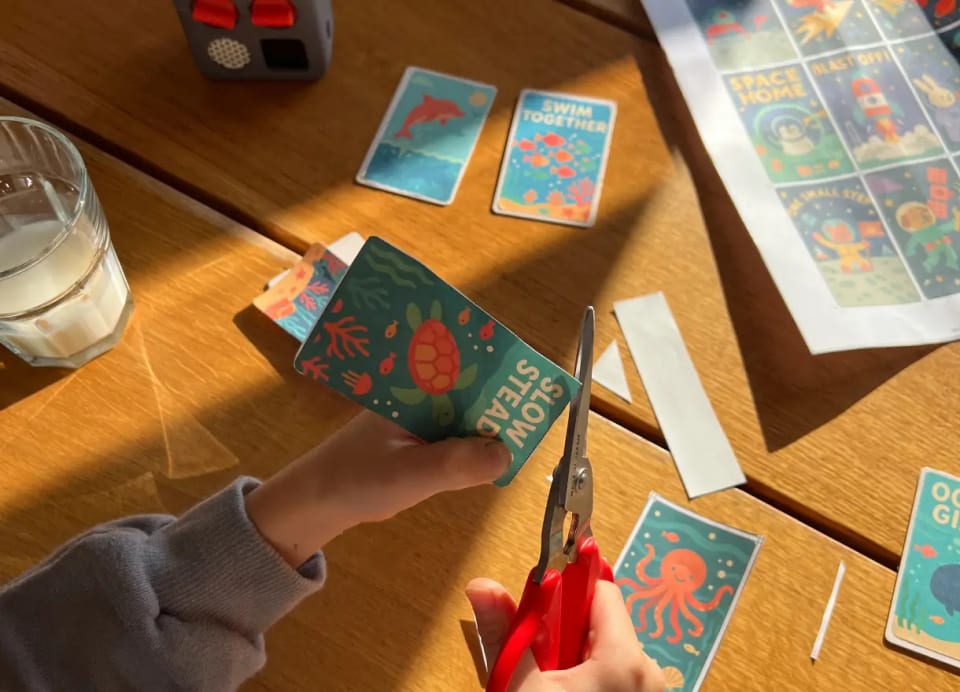
A child cutting printed Yoto MYO labels from a sheet of paper with scissors

Everything stays in your browser. Your images are never uploaded or stored. I built this for my own son's MYO cards first, before opening it up to everyone.

How to create custom labels for Yoto MYO cards

It stays out of your way. No layers panel, no complex settings menu to dig through. Just enough to get your art onto a label and nothing to slow you down.

  1. 1

    Add images

    Add from your device, import from Yoto, or pick a free template.
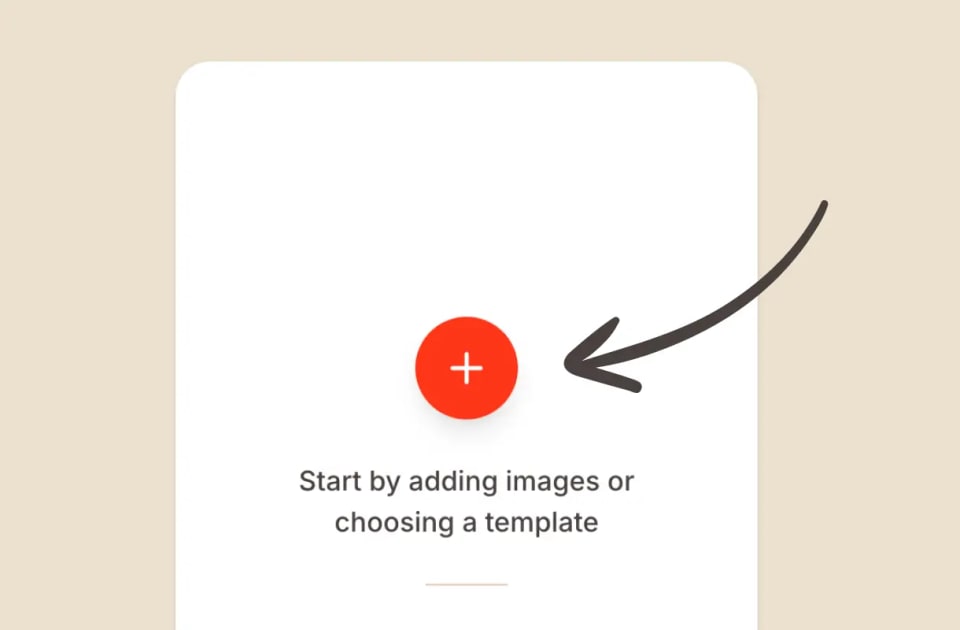
    Add image to the Yoto Labels from your device, connect your Yoto library or choose from templates.
  2. 2

    Arrange the sheet

    Pick a layout, crop, set corners and sizing, and choose label and paper size.
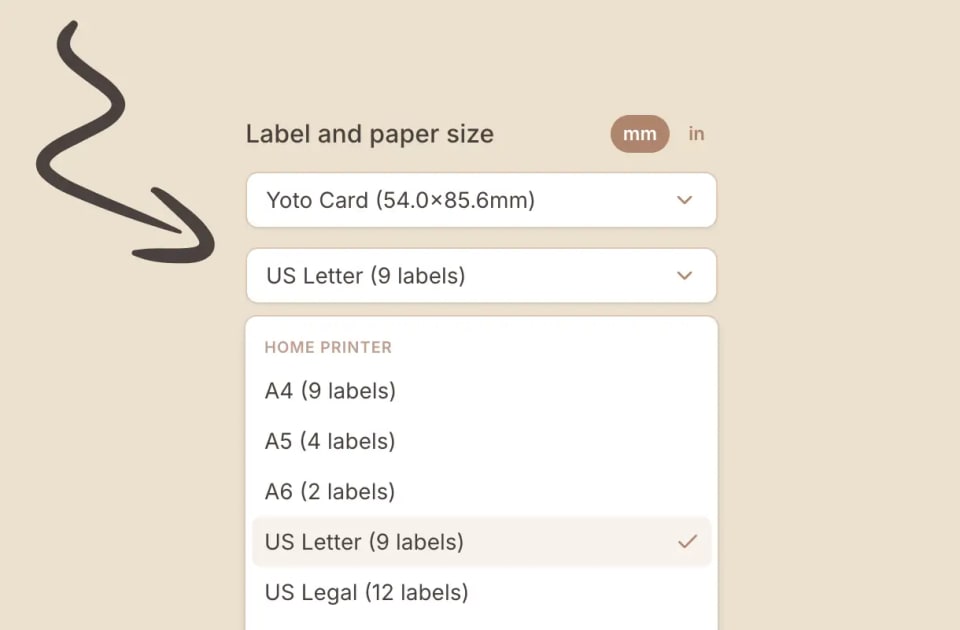
    Yoto Labels editor showing a sheet of custom MYO labels ready to print
  3. 3

    Export

    Generate a print-ready PDF (or JPEG / PNG) with the recommended setup.
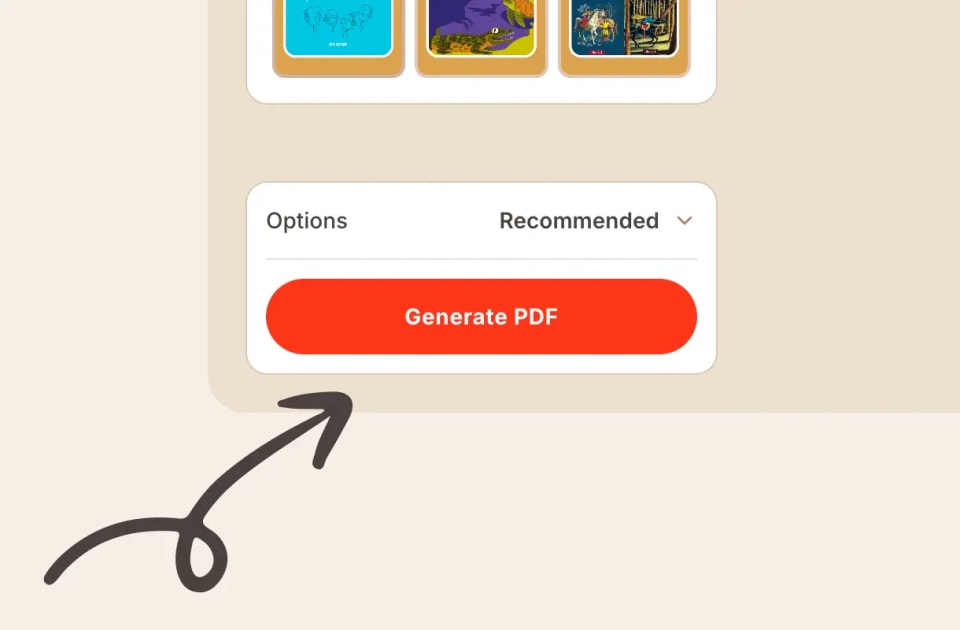
    Get print-ready PDF with your MYO labels

That is the whole process, start to finish. Every step is documented in the guides below, from picking a layout to sorting out paper size. If something still trips you up, get in touch and I will sort it out.

Articles in this topic

Read in order · or jump in
  • How to add images in Yoto Labels

    →
  • Choosing a label layout

    →
  • How to crop and edit images

    →
  • Corners, sizing, and slots

    →
  • How to export your labels

    →
  • Label and paper size

    →

Frequently asked questions

Open Yoto Labels, add cover art or a photo, arrange the sheet, then export a PDF. The articles below walk through each step.

No. Add an image or pick a template, crop if you need to, and export. No account and no Canva template hunting.

Standard MYO labels are 54mm × 85.6mm. Yoto Labels sizes your export to fit, so you do not need to resize by hand.

Begin with How to add images in Yoto Labels, then follow the articles in order through export. Or jump to the step you need.

Worth a look

  • Yoto Card Size & Dimensions
    →
  • Yoto Label Size Guide
    →
  • Yoto Card Templates
    →
  • Yoto Label Templates
    →
  • Canva Template for Yoto MYO Labels
    →
Free Yoto label maker

Make printable MYO labels

Add an image or pick a template. Get a PDF sized for Yoto cards, ready to print at home.

Create Labels →

Hi, I'm David. I built this free tool for my kid's MYO cards. Add a pic or pick a template, print a PDF that actually fits.

Make some labels →

The tool

  • Make labels
  • See what others made
  • Browse the guides

How-tos

  • Using the tool
  • Getting started with MYO
  • Making labels at home
  • Organizing your cards
  • Libraries that lend Yoto

Around here

  • Why this exists
  • Send feedback
  • Buy me a coffee
  • Privacy
© 2026 YotoLabels.comNot affiliated with Yoto Ltd.